Potentiating your Syllabus

Potentiating your Syllabus

As you ramp up for the next semester and ponder ways to get students to read your syllabus, consider some of these techniques.


  1. In 2015, Joseph A Howledy (Columbia University) snuck a phrase in his syllabus asking his students to send an email to himself with a photo of the lovable character ALF from the eponymous eighties television show. While he admitted that there is a shelf-life on this gag, he does remind us that things like this succeed in introducing FYE students to the importance of reading the syllabus. If you don’t like ALF references, you could always channel your inner Van Halen
    Image of ALF.

  2. Kenyon Wilson (University of Tennessee at Chattanooga) embedded a high-value reward for readers of his syllabus. On page two (of three – and we should commend him for such a brief syllabus) Wilson included the words: “Free to the first who claims; locker one hundred forty-seven; combination fifteen, twenty-five, thirty-five”. While this might not be a sustainable mechanism, perhaps there is a way to build on this. What if you left a small piece of paper in an old Altoids tin taped to the bottom of a couch in the Library and directed students in your syllabus to add their name to it?

  3. Engage your students by having them collaboratively annotate the syllabus. Encourage them to ask questions, identify the hot spots in the document, or add their own ideas. Not only is this a great way to tease dialogue and critical thinking out of your students, but introducing them to social annotation tools like Hypothes.is introduces voltage into your class. Questions about the potency of social reading and annotating? Look at Curt’s post about Hypothes.is from 2020 or check out the recording of Hypothes.is presenting at FLCC.

  4. Consider the analog of an FDA Nutritional Label that distills the information that learners look for the most. Office hours, the grading policy, the late policy, and some course information:

    The important bits of a course syllabus distilled into a nutritional label.

  5. Similarly, think about including a TL;DR section in your syllabus. In internet lingo, TL;DR means “too long, didn’t read”. Oftentimes at the end of a long post you’ll see a TL;DR followed by a succinct summary. Consider adding a TL;DR right near the top of your syllabus that includes an itemized list of the really important parts of your syllabus. You can read a `bit` more about that idea in our post from December 2021.
    Text in a box that says TL;DR TOO LONG; DIDN'T READ.

  6. Add flair to your syllabus with comics! Is this gimmicky? Sure. Is it fun? You bet! Will your students read the syllabus? I don’t know, but they’ll probably at least read the comic strips. Perhaps one of the best comics to put in your syllabus is anything found in the catalog of “xkcd”. You’ve probably seen these comics floating around online – and with good reason. They are funny. They are snarky. They cover a lot of topics in academia. And they are licensed through Creative Commons – which means the author has given explicit consent for you to use them. For more information on Creative Commons, check out our post from April 2024 or ask your friendly librarians.
    A comic from xkcd that shows a matrix for things that you might have encountered growing up plotted against how bad it is if you don't know these things!
  7. Spice up the curb appeal of your syllabus! Dr. McLaughlin from Notre Dame has an awesome syllabus in the form of an infographic. Even adding in a pie chart that shows the grading breakdown is helpful for students. Piktochart makes it easy to make infographics and even offers some good tips on how to create one. And if you don’t like Piktochart, you can always use Canva (it was created by an educator and is ridiculously easy to use!) – the free version is quite robust!
    A syllabus in the form of an infographic from Dr. McLaughlin at Notre Dame.

  8. Make it a game. Or games. Imagine a sweet, sweet word search after one section in your syllabus (that includes terms from that section). And maybe the next section has a crossword with clues germane to that section. There are plenty of free tools out there to help you create these interactive summaries. The crossword below was made with Crossword Labs. You might even consider a small prize for students who complete all the games (or make the games an assignment).
    A crossword with clues and answers that are relevant to a syllabus.
  9. John Rose (Kent State University) includes links to his syllabi in the signature of his email. This is a great way to signal the importance of the syllabus.

  10. In Brightspace, create a guided quiz based on the syllabus. In this idea, a “guided quiz” is a tool where the learner is permitted to use the syllabus (like an open book test) and each question asks the learner to answer a question about the syllabus. It’s a much better experience for the learner if the questions on the quiz are encountered in the same order as they appear in the syllabus. Allow learners the opportunity to take the quiz as many times as they’d like. Configure the assessment such that only when the student achieves a 100% on the quiz will it unlock the rest of the content in the course. This is a win-win! The students get an “A” as their first grade and you can rest easy knowing that the students have gone through the syllabus.

  11. In the spirit of the subtle, interactive puzzles and mystery discussed in the post from last week, let’s add one more to our arsenal: palindromes. Try nonchalantly including palindromes in your syllabus. If you carefully choose palindromes (with pivot letters – the letter or letters in the middle of the word) you can spell out a secret message. The following palindromes might be scattered across the syllabus. For instance, decoding the message yields “DAVE”.

radar, yay, level, heh

If you don’t have an appetite for any of these ideas, you can see Cathy Davidson and Christina Katopodis suggest in their recent post in Inside Higher Ed (we’ve recommended Cathy’s latest book and her podcasts appearances in previous blogs.

Be sure to share with your colleagues your novel syllabus ideas!

full-width


Continue reading
Three Types of Knowledge

Three Types of Knowledge

In Multimedia Learning by Richard Mayer discusses five kinds of knowledge: facts, concepts, procedures, strategies, and beliefs (page 31).

We as educators instinctively consider the first four types of knowledge when we create educational experiences. For instance in computer science we might introduce the concept of variables and then demonstrate how those variables can be used in a program. Or in math we might talk about different mathematical operators and then investigate the order of operations (remember PEMDAS?).

We might even dip our toes into the fifth type of knowledge – belief. We might encourage learners and remind them that if they stick with a particularly difficult concept they will emerge victorious.

Reflecting after more than twenty years of teaching, I have realized that I don’t devote enough attention to the belief knowledge.

One thing that I have used lately to help frame my teaching from a growth lens is to really focus on that elusive belief. Mayer categorizes the five types of knowledge into three buckets – and those buckets are now the guideposts when I design my learning environment.

DECLARATIVE KNOWLEDGE

These are the facts and concepts related to a topic. For instance, if you set out to teach someone archery it is a good idea to identify the parts of a bow and the parts of an arrow. Knowing what the knock is and what the fletchings are will be important later on. At this stage, knowing the vocabulary is sufficient.

PROCEDURAL KNOWLEDGE

These are the processes, procedures, and strategies that a learner needs to understand. In archery parlance, this would include learning how to string a bow, learning how to knock an arrow, and knowing how to aim. It’s the next logical step. Once the learner knows what the components are, they need to know how to use them.

ATTITUDINAL KNOWLEDGE

This is the belief part. This is the transformative part. When the new archer goes from “I’ve never shot an arrow before” to “Wow! I hit the target – I never thought I’d be able to do this!”, then the belief structure has been altered.

And the attitude change isn’t the endgame; it’s quite the opposite. The shift in self-perception is a way to fuel the fire. It can be a flywheel for future learning. Going from “I can’t learn Python” to “Okay – I don’t quite get it but I can see progress” to “Huh. I guess I am a programmer” is attitudinal knowledge.


There are a few ways we can help students realize the attitudinal knowledge when we teach. Encouragement is a good start, but it doesn’t stop there. Most of us naturally scaffold the content so that it can be coherently apprehended by our learners. And that’s another great mechanism to bring learners along. But one overlooked strategy is embracing failure. Admitting (or pretending to admit) when we don’t know something. Model failure as a tool to gain telemetry, not as a signal to stop what we’re doing. Showing metacognition as a tool to diagnose gaps in our learning and brainstorming antidotes. Demonstrating iteration as a viable tool to traverse complicated situations. Using micro-failures to normalize failure.

There are dozens of ways we can intentionally help our learners augment their beliefs. Building confidence in learning is essential to building persistence in life. The next time you are in the classroom, sprinkle in a little spice to give that attitudinal knowledge a kick.


This table is from page 32 of Mayer’s book and provides great examples for the types of knowledge:

TYPEDEFINITIONEXAMPLE
FactsKnowledge about characteristics of things or eventsElectrical current is measured in amps
ConceptsKnowledge of categories, principles, or modelsAs voltage increases in a circuit current increases
ProceduresKnowledge of specific step-by-step processesIf V=10 and R=2 then you can compute I based on the formula I=V/R
StrategiesKnowledge of general methods about how to orchestrate one’s knowledge to achieve a goalMake a drawing when you try to solve a word problem
BeliefsThoughts about oneself or about how one’s learning works“I am good at online learning.”
full-width
Continue reading
Thinking Classrooms

Thinking Classrooms

Peter Liljedahl, a professor of mathematics education at Simon Fraser University, has spent twenty years observing classrooms in pursuit of effective teaching (mostly in K12 classrooms). He has concluded that the majority of students are not learning in classrooms – only about 20% are authentically learning.

So what are the students doing while instruction is happening? Liljedahl says they are studenting. That’s his analog to teaching. As teachers we have a massive collection of tasks to perform. When we are teaching we are managing the classroom, mentally taking notes of things to follow up on, worrying about classroom dynamics, dealing with technology. As teachers we also grade work, meet with students, attend meetings, participate on committees, design curriculum, wrestle with technology, and grapple with myriad other tasks.

Likewise, students are studenting. They are hopefully learning but also doing classwork, talking with other students, planning out their days and weeks, contemplating dinner, thinking about the social life of college, gaming the system, and trying to appease their teachers.

When a student is studenting, they may be tricking their teacher into thinking learning is going on. This is extremely pernicious because studenting can easily delude the student into believing that learning is happening.

But the real studenting happens right in front of our noses. Most students exhibit behavior that seems like thinking but is not.

Liljedahl categorizes students into five categories:

Slackers

These are students who are off-task and do not make an attempt to learn. Think of these students as the stereotypical slacker – no affinity for learning and no structured plan for learning.

Stallers

Students who get up and go to the bathroom during class, who might sharpen their pencils, might send their teacher an email during class during a lecture are stalling. They are kicking the can on learning. But this is very dangerous – these behaviors are oftentimes permissible in a classroom and their behavior might appear copacetic.

And think about it – if chronic stallers are supposed to be working on a problem but they know from previous experience that the answer will be revealed in a few minutes by the teacher, what’s the incentive to do the work? Why confront the possibility of failure if a high-quality source is going to provide the answer?

Fakers

Fakers fake their learning and thinking. In a computer programming class this emerges in two popular ways – typing code and then deleting it (repeatedly) and flipping between the lab description and their code.

In a math class you might see a student attempt a problem and then erase it over and over – leaving no evidence of the thought process. You might even witness a notetaker that is not even taking notes – though they may look attentive and engaged.

Fakers and stallers typically care what the teacher thinks of them.

Mimickers

Mimickers are not thinking – just reproducing. These students have learned how to play the Game of School. They have learned that producing work – which is not the same as thinking – is currency that buys praise and good grades.

These are students who can follow the process, the algorithm, the examples in class and convince themselves – and their teachers – that thinking has happened. That understanding has been achieved.

A mimicker hands in their homework but it’s incomplete because “you didn’t teach me how to do this type of problem.”

According to Liljedahl, mimicking is a highly addictive drug. Feeding the addiction might lead to academic success in the short term (at the expense of understanding and long-term gains). He also says that without fail, 100% of mimickers will ultimately struggle. And it won’t be graceful. Instead of going from an A to a B, most mimickers will drop from an A to a D. Some students can mimic all the way through high school.

Failure to think, despite producing, will ultimately lead to disaster.

“When we interviewed the teachers in whose classrooms we were doing the student research, all of them stated, with emphasis, that they did not want their students to mimic. Ironically, 100% of the students who mimicked stated that they thought that mimicking was what their teacher wanted them to do.”

Trying it on their own

This is the gold standard of students – learners who will engage with coursework regardless of if they get it right or not. These students are brave. Students who try it on their own are actively engaging with the content and building up sweet, sweet myelin sheaths around those neurons.

Unfortunately stallers, fakers, and mimickers often appear to be in this category, tricking teachers in the process.


Note that this is not an indictment on students – overwhelmingly students want to learn. The problem is that educators cannot fix what they cannot see. Being aware of the archetypes of students is a great first step in helping potentiate learning and thinking. Metacognitive practices are a good way to help students overcome thinking deficits .

Liljedahl authored Building Thinking Classrooms in Mathematics, Grades K-12: 14 Teaching Practices for Enhancing Learning (Corwin Mathematics Series) in 2020 to diagnose the problem and propose an antidote.

If you are interested in thinking more about how to make classrooms “thinking classrooms” and diving into Systems Theory (and how to overwhelm systems to force recalibration), you might want to listen to Liljedahl’s recent appearance on the EdSurge podcast or read a primer here.

full-width

Continue reading
Cool Tools, Part II

Cool Tools, Part II

Back by popular demand – a roundup of free and easy-to-use software. Consider adding the following to your arsenal of creation and productivity tools:

A few notes:

  1. These are tools I use often. It is very likely that there are better tools out there. If you have some, share them with me! They will be featured in future newsletters.
  2. You might need to create an account for some of these resources. Don’t panic. All of the resources covered below are free!
  3. Some of these tools are not intuitive. If you are interested in learning more, press buttons and explore. I’m also always happy to talk tech, so lemme know if you need help 😄

Movie Editing

You might not make videos often, but when you do it sure is nice to use intuitive software that has free stock footage, lots of cool effects, and a slick interface. Microsoft’s ClipChamp is a web-based video editing software. It might not compete with Adobe Premiere Pro, but it’ll get the job done in a pinch. And it’s pretty fun to use.Screenshot of ClipChamp in action.

Making Images

Hiding in the shadows of Google Docs, Slides, and Sheets is Google Drawings. It’s not as powerful as Photoshop or Photopea, but it holds its own. It supports layers, transparency, and can be integrated into Google Docs, websites, and pretty much anywhere else. I use it for 99% of the graphic work I do. Two really neat things:

  • You can create the Drawing, put it somewhere (like a Google Doc, website, or email), change the drawing in Google Drive and watch as the changes take hold in all the places the image lives.
  • You can make the image have different “hot spots” – the hyperlinks are different for different parts of the image.

This tool will be explored further in the CTL Fall EdTech Extravaganza. Stay tuned!Screenshot of Google Drawings in action.

Simple Notes App

Google Keep is a simple notes app with some hidden treasures in it. You can make simple notes with basic formatting. You can set alarms with it. You can have check boxes. You can share notes with collaborators. But the best part of Keep is that it syncs across the website, the mobile app (iOS and Android), and the web app. It’s got a ton of other neat features, but I suggest you just download the app and start playing around. I don’t like that there is no hierarchy (like OneNote), but the speed, reliability, and utility more than compensate.Screenshot of Google Keep in action.

Filler Text

Ever need filler text for something you are working on? Just some temporary text as a placeholder (and hopefully better than asdf asdf asdf)? Then check out the Lorem ipsum generator. Just like the typesetters of yesteryear, you can use Latin words to help with your layout – before your actual text is ready. And if you prefer bacon, you will love Bacon ipsum.Screenshot of Lorem Ipsum in action.

Kindle Highlights

If you read on your Kindle – and you highlight or take notes – you can access them all from one webpage. Just head over to https://read.amazon.com/notebook to see all the notes and highlights you’ve ever made. You can copy and paste text from this site, too, which is great if you want to share passages with others.Screenshot of Kindle Notes in action.

full-width
Continue reading
Cool Tools, Part I

Cool Tools, Part I

There are plenty of tools to help you create – and beautify! – content. Maybe you need to edit an image you got from Unsplash. Perhaps you are looking for a way to make beautiful brochures or flyers. Or you might need to modify a PDF document. Bookmark the following tools – they’ll make your life a lot easier.

A few notes:

  1. These are tools I use often. It is very likely that there are better tools out there . If you have some, share them with me! They will be featured in future newsletters.
  2. You might need to create an account for some of these resources. Don’t panic. All of the resources covered below are free!
  3. Some of these tools are not intuitive. If you are interested in learning more, press buttons and explore. I’m also always happy to talk tech, so lemme know if you need help 😄

Photo Editing

Wish you had Photoshop on your computer? That’s OK if you don’t have it – you can just head over to Photopea.com for a Photoshop-like experience. Photopea is free to use and has a ton of the high-end features that Photoshop does. It even let’s you import and export .psd files and Figma files!Screenshot of Photopea.

Removing Backgrounds

It used to be a painstaking task to remove the background from images. But there are tons of free tools to do that for us now (in fact, Google Slides has it built-in!). Let’s look at Adobe Express – they have a special tool to remove the background of images. And it’s pretty dang good. You can see it removed the background from my ugly twin brother and I posing for selfies. To be clear, he’s the ugly one.Screenshot of Adobe Express (background removal tool).

Simple Data Visualization

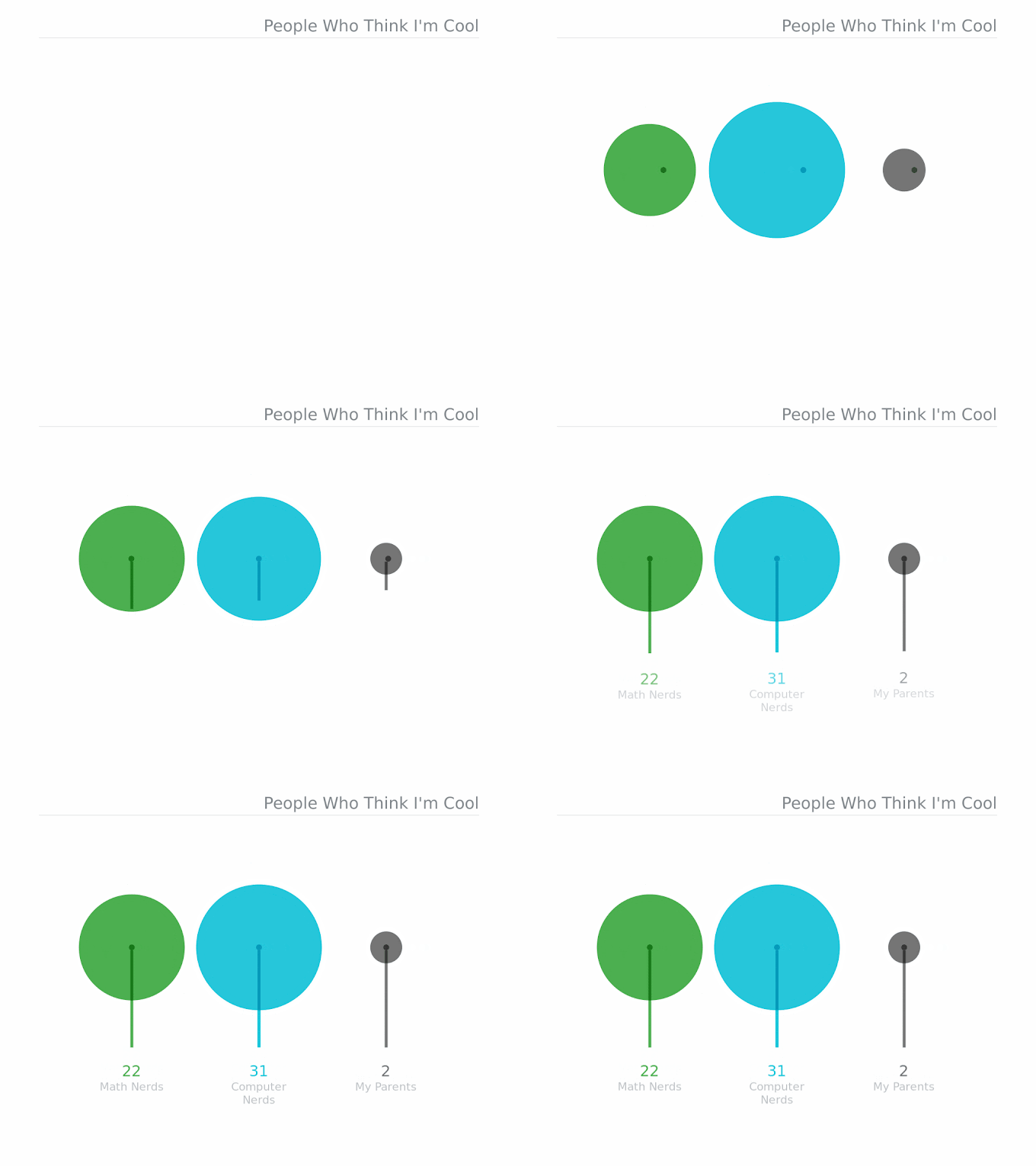
If you find yourself in need of some simple data visualization and you don’t feel like wrestling with Excel or Google Sheets, head over to Google’s Data GIF Maker. There are a few different templates you can choose from. Entering the data and customizing the look of the image is super simple. You can even export your work as an animated GIF. Be sure to export in HD, not SD.Animated data visualization of people who think I'm cool.

Working with PDFs

DocHub is a wonderful solution when you need to work with PDFs. While you can link DocHub to your Google Drive or OneDrive, I don’t. I upload PDFs if I need to clean them up, change the order of the pages, merge PDFs, rotate pages, or add some text. You can even send faxes from DocHub (I believe that will set you back a buck or two). And you can upload your signature so when it comes time to signing, you can just click on your signature and it’s inserted automatically.Screenshot of DocHub

Word Clouds

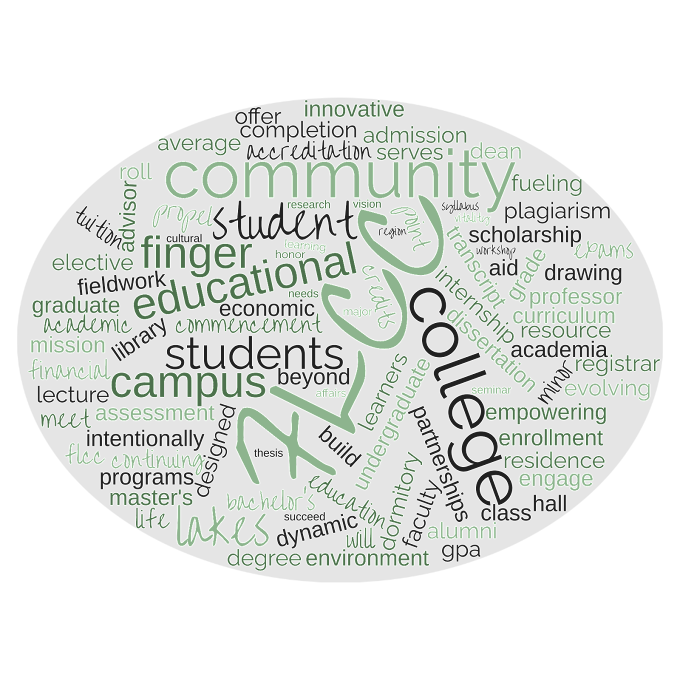
There are a ton of word cloud generators out there too – I like WordClouds.com. The interface is easy to use and there are a lot of customization options. Not only are word clouds a great way to convey main ideas, but they can be revealing – load in a recording of your class to expose the actual themes. Take a look at the FLCC mission and vision statements:Screenshot of WordClouds.comFLCC mission and vision visualized.

Slideshow Templates

Want to amp up your next presentation? Head over to Slides Carnival and choose from hundreds of professionally designed slide shows that you can adapt to your presentation. Just be on the lookout for what presentation software (Canva, PowerPoint, or Google Slides) is compatible with each template.Screenshot of Slides Carnival.

Color Palette Generator

If you have a hard time choosing matching colors for your presentation, be sure to check out coolors.co. You’ll be presented with five random colors (but you can manually input some if you’d like). Just keep hitting space until you see a color you like and then lock it in. Repeat until you have a sweet color palette that matches. This tool also has colorblind-friendly versions of the palette you choose and you can upload an image and coolors will extract a color palette for you. It’s pretty slick.Screenshot of coolors.co

full-width
Continue reading
Better than Copyright

Better than Copyright

It is so tempting (and easy) to find an image online and use it in some work you are doing. I used to do it all the time. That is, until I married a librarian. Then my wonderful wife introduced me to copyright law and some sweet (and easy) alternatives.


When you need an image or a movie clip or music for a project and you want to avoid copyright, there are a ton of resources you can use. My go-to sites for finding images are:

  • Unsplash – A site with thousands of images – taken from professional photographers around the globe – that you can use for any reason. You don’t even have to give credit to the photographer (but it’s great karma if you do).
  • Pixabay – Similar to Unsplash, Pixabay has high-quality images. You can also find cool illustrations, movies, and music. You also don’t need to provide attribution to the artist. But, karma.

Between Unsplash and Pixabay I can find almost anything I need for all my work – and I recommend you do, too. The quality is often as good – or better – than a Google search. In fact, much of the art used in previous blog posts have been from these sites. There are tons of other sites, too (like Pexels) that also have wonderful resources. Just make sure you note the licensing when you venture to new sites.

Unless otherwise stated, most work is automatically protected by copyright. The law is a bit confusing and changes based on when the content was created. The most current iteration of copyright law says that if the work was created past January 1, 1978, then copyright exists for seventy years after the death of the artist.

Public Domain

When copyright expires it belongs to the public domain. That means you can use it however you want. Steamboat Willie went into the public domain on January 1, 2024! But not all versions of Mickey Mouse are in the public domain (yet). You can check out The Public Domain Review for a big collection of work.

Fair Use

I’m no lawyer, but I can tell you that fair use is a sticky wicket. Educators often claim fair use when using copyrighted work, but I avoid using it as much as I can. The United States Copyright Office has a good description about fair use, but the reality is that judges have tremendous latitude when interpreting fair use in copyright cases, and most advice seems to suggest staying away from relying on fair use whenever possible.

Royalty-Free

Despite the term “free”, royalty-free work is usually not free. Royalty-free work usually means that you initially pay for the work but don’t have to provide royalties each time you use it – you’ve bought a license to use it as much as you want.

Creative Commons

Developed as an alternative to traditional copyright, a Creative Commons license allows creators to copyright their work such that others can use it freely (and in most cases modify it, too). There are a few different flavors of licenses, so I recommend talking to your friendly librarian or checking out the Creative Commons website for a rundown of licenses and also a collection of work licensed under Creative Commons.

AI

As of this publication, work generated with artificial intelligence cannot be protected under copyright in the United States. Using AI to create bespoke images is a great way to make images for projects you are working on (ethical concerns about AI aside). Use sites like DALL-E 2 to create images.


Honestly, the biggest takeaways here are Unsplash and Pixabay. Those two sites will give you 95% of what you need. Even if you don’t have a need for copyright-free images, you should still check out Unsplash to see the gorgeous photography.

If you want to provide students with a brief overview, you can share this video. And if you have more questions about copyright issues, make sure you connect with the amazing talent at the library!

Also, I’m not a lawyer. So take everything I’ve said with a grain of salt. All of this information only applies to copyright laws in the United States.

full-width

Continue reading
More “Multitasking”

More “Multitasking”

Ask people if they are good at multitasking and chances are they’ll say “yes”. Two things to note about this:

  1. Multitasking doesn’t exist – the human brain can’t do two cognitively demanding tasks simultaneously. Humans can task switch but not multitask.
  2. Most people over-index their ability to task-switch. By a lot.

Any time multiple demands compete for attention (interference) we have to devote resources to orient ourselves to the new task. And that orientation incurs a cognitive and metabolic hit. Consider this process that happens every time we switch tasks:


GOAL SHIFTING

1 – Stop the current task

2 – Search for information about the new task

RULE ACTIVATION

1 – Find new task parameters

2 – Engage in the new task


Sure, this process can be speedy (maybe only a few tenths of a second) but over time those costs add up – and that’s just the time penalty. Interrupting deep focus can damage memory and learning. In a study that examined divided attention while retrieving information participants with divided attention performed roughly 42% worse than participants in the full attention group. That is the difference between an A and an F ! And while that study may be a specific case, there is a mountain of research demonstrating the abject failure of “multitasking”.

As you are having conversations about “multitasking” with your learners, here are a few studies that you might share to illustrate how subtly dangerous “multitasking” is.

The Breakfast Bowl Study

In this study participants had to classify sentences as coherent (“This morning I had a bowl of cereal”) or nonsensical (“This morning I had a bowl of shoes”). The first group had no distractions, the second group had to focus on a sentence (got to choose between written or spoken), and the third group had to sort two sentences at the same time (one written and one spoken).

The unimodal condition participants scored around 98% accuracy. The selective attention conditions group scored a 95%. The third group, divided attention, scored a meager 90%.

On sorting sentences like “I had a bowl of shoes”.

Cognitively speaking, this is not a terribly demanding task and there was an 8% drop!

You can also point to the study (Microsoft was one of the researchers) that showed just how much time was lost to alerts from emails and instant messages. The study found that “participants spent on average another 10 to 15 minutes (depending on the type of interruption) before returning to focused activity on the disrupted task.” But what is even more interesting is how the participants mis-indexed their ability:

Users spend more time than they realize responding to alerts. Even though users feel that they are in control of when they switch tasks due to an alert, they appear to be largely unaware of the amount of time they end up spending on the alerting application, on other tasks they invoke as a result of responding to the alert, and on browsing through other peripheral applications before resuming the suspended task. Even when users respond immediately with the intention of resuming the suspended current task as soon as possible, they often end up taking significantly more time to return than the time to respond.

You can also remind your learners that there is no evidence to suggest that “digital natives” perform any better with digital task switching than “digital immigrants”.

ABCs

There are two things you can do with your learners to evangelize the dangers of “multitasking”.

Ask a learner to count, out loud, from 1 to 20. Time them as they count. Then, ask that learner to rip through the alphabet as fast as they can – and time that, too (thanks to Paul for suggesting introducing time into this).

Here’s where the showpersonship comes in. Remind everyone watching that these silly tasks (that they have been doing most of their lives) took mere seconds.

Then ask the learner to toggle between letters and numbers (“A”, “1”, “B”, “2”, “C”, “3”…). Most people fall apart before “J” – and even if they get that far, it demands much more time and focus than either task done by itself. You can even have everyone in the class do this at their seats (or in front of their computers). Tell your learners to mouth out what they are saying even if they aren’t vocalizing.

Another activity you can do is to show a slide like this one and ask someone to read it. Have them say the color, not the word:Nine different colors are written down in an easy to read font. Each color is written in a font color that is different than the color name. For instance, the word RED is in blue font.

You can download a color version here and a black & white version here

This is also an opportune time to talk about how color should never be the primary way to convey information – this activity is not accessible to people who are colorblind.

McDonald’s

Let’s close with another analogy. Again from our friend Stanislas Dehaene and one of his books How we Learn. In it, he talks about a study where participants had to press a key with their left hand whenever they heard a high-pitched sound and a key with their right hand if they saw the letter “Y” appear on a monitor. When the events happen at the same time, there is a lag in the reaction time. Our global workspace can only contend with one task at a time. I liken this to working at a drive thru at McDonald’s. When the person taking the order finishes up and that car moves forward, the next car in line moves up to the microphone. Note the dual-reality here. The employee who is taking the orders has no idea if the new car just drove up or if they were waiting for a long time – in fact, they might not even know how long the line is. Their perspective is that they are handling orders one at a time as quick as possible whereas the reality of everyone else is witnessing gigantic waits and long lines.

This is why people mis-index their ability to “multitask”. Even if tasks are competing for our attention and lining up just like those cars, we don’t notice. Dehaene concludes by saying, “Remarkably, however, none of us is aware of this large dual-task delay—because, by definition, we cannot be aware of information before it enters our conscious workspace” (page 161).


Photo by Markus Winkler on Unsplash

full-width
Continue reading